Team Management
Batch Importing Team Members
Import multiple team members from CSV.
Last updated June 10, 2026
Onboarding a large team? Import everyone from a CSV file.
1
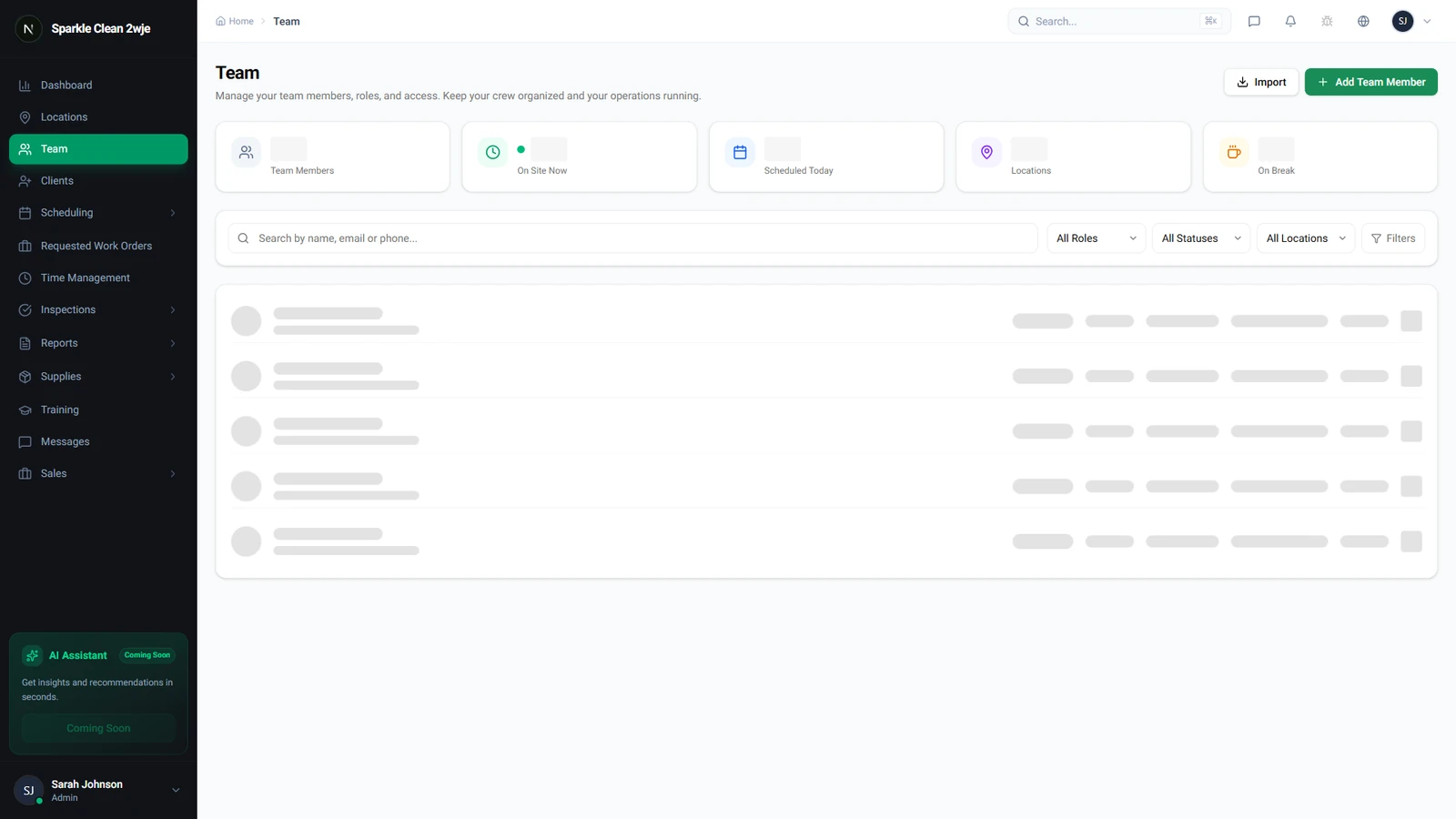
Open the Import Option
Go to Team and look for the Import button.
2
Download Template & Fill Data
Download the CSV template and fill one row per member:
⚠️
Important: Emails must be unique. Duplicates are flagged as errors.
📋 Form Fields
| Field | Required | Description |
|---|---|---|
| first_name | ✅ Yes | First name e.g. "Maria" |
| last_name | ✅ Yes | Last name e.g. "Santos" |
| ✅ Yes | Unique email for login e.g. "maria@co.com" | |
| role | ✅ Yes | admin, manager, supervisor, or cleaner e.g. "cleaner" |
| phone | Optional | Mobile number e.g. "555-0123" |
| hourly_rate | Optional | Pay rate e.g. "18.50" |
3
Upload & Import
Upload the CSV, review the preview, click Import All. Members receive invitation emails automatically.
🙌
Need help? If you have any questions or run into issues, reach out through the Support section in your dashboard.