Team Management
Understanding User Roles & Permissions
Complete guide to what each role can access.
Last updated June 10, 2026
CleanTrack360 uses role-based access control. Here's what each role can do.
1
Role Permissions Dashboard
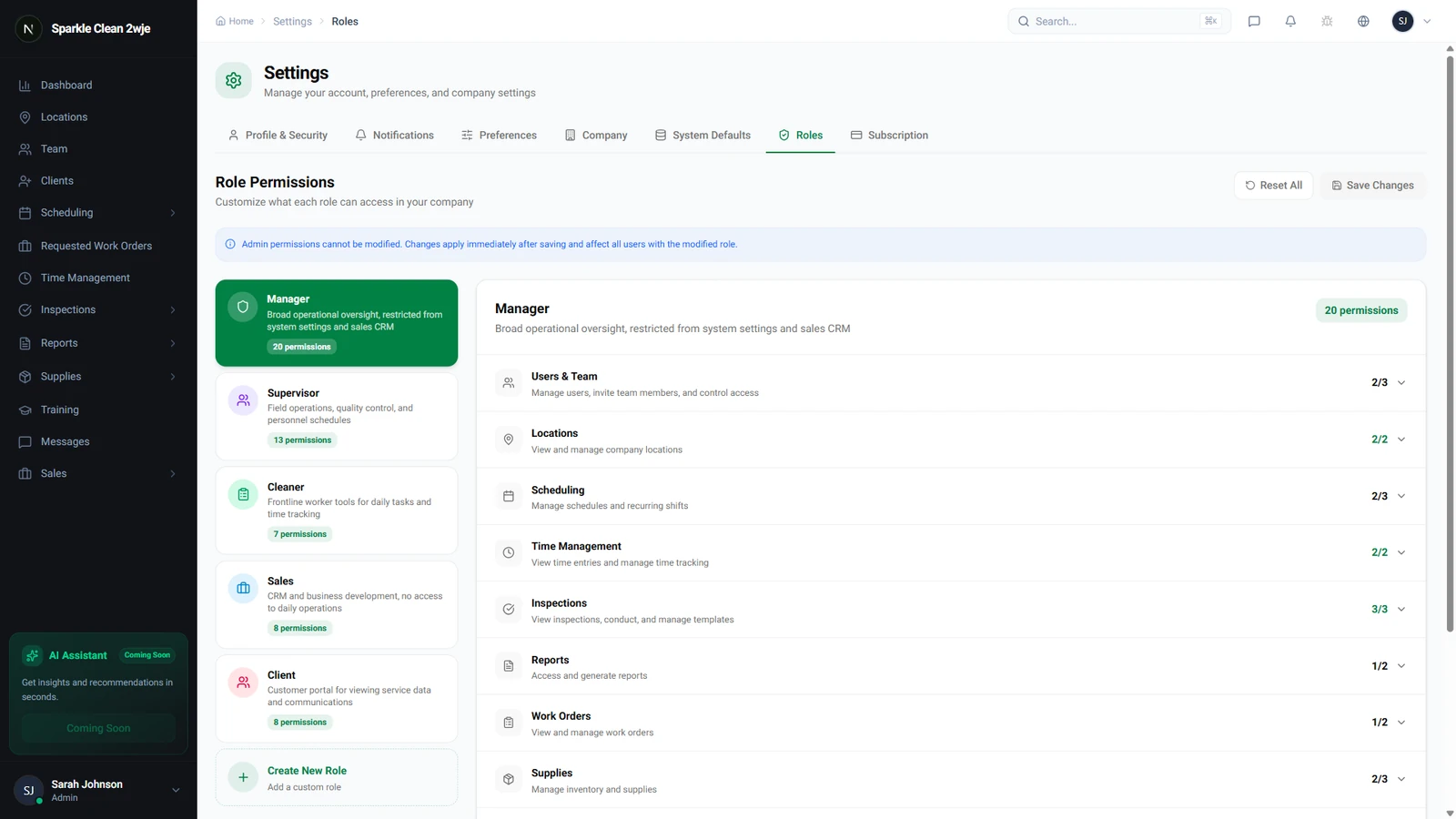
Navigate to Settings → Role Permissions in the sidebar. Here you will see the system-defined and custom roles configured for your company.
2
Supervisor Role Permissions
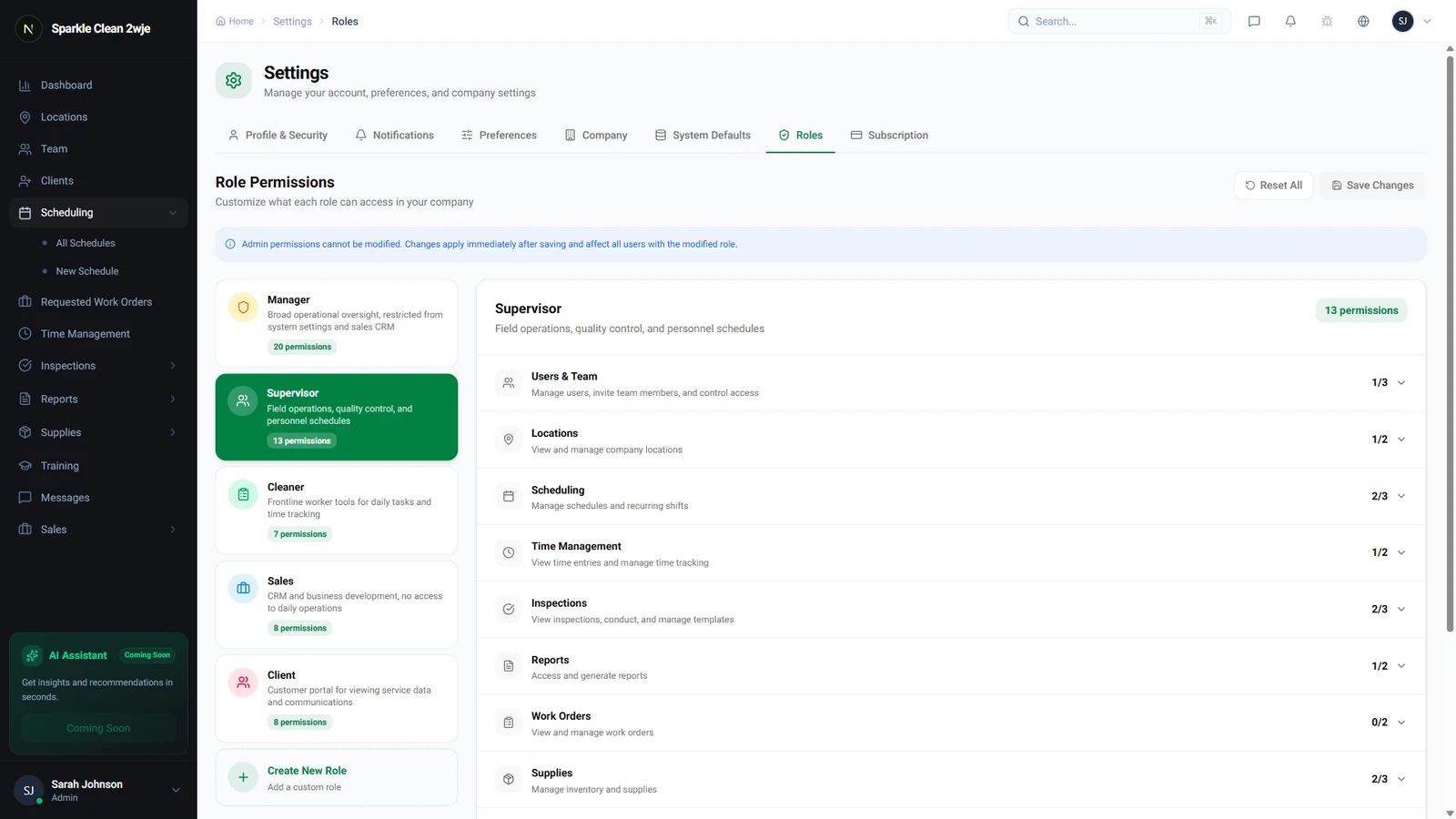
Clicking on Supervisor displays its specific dashboard and access rights. You can expand permission groups like Locations, Inspections, and Schedules to review detailed permissions.
ℹ️
Supervisors have a focused operational view: they can view schedules, conduct inspections, and manage time entries at their assigned locations.
3
Cleaner Role Permissions
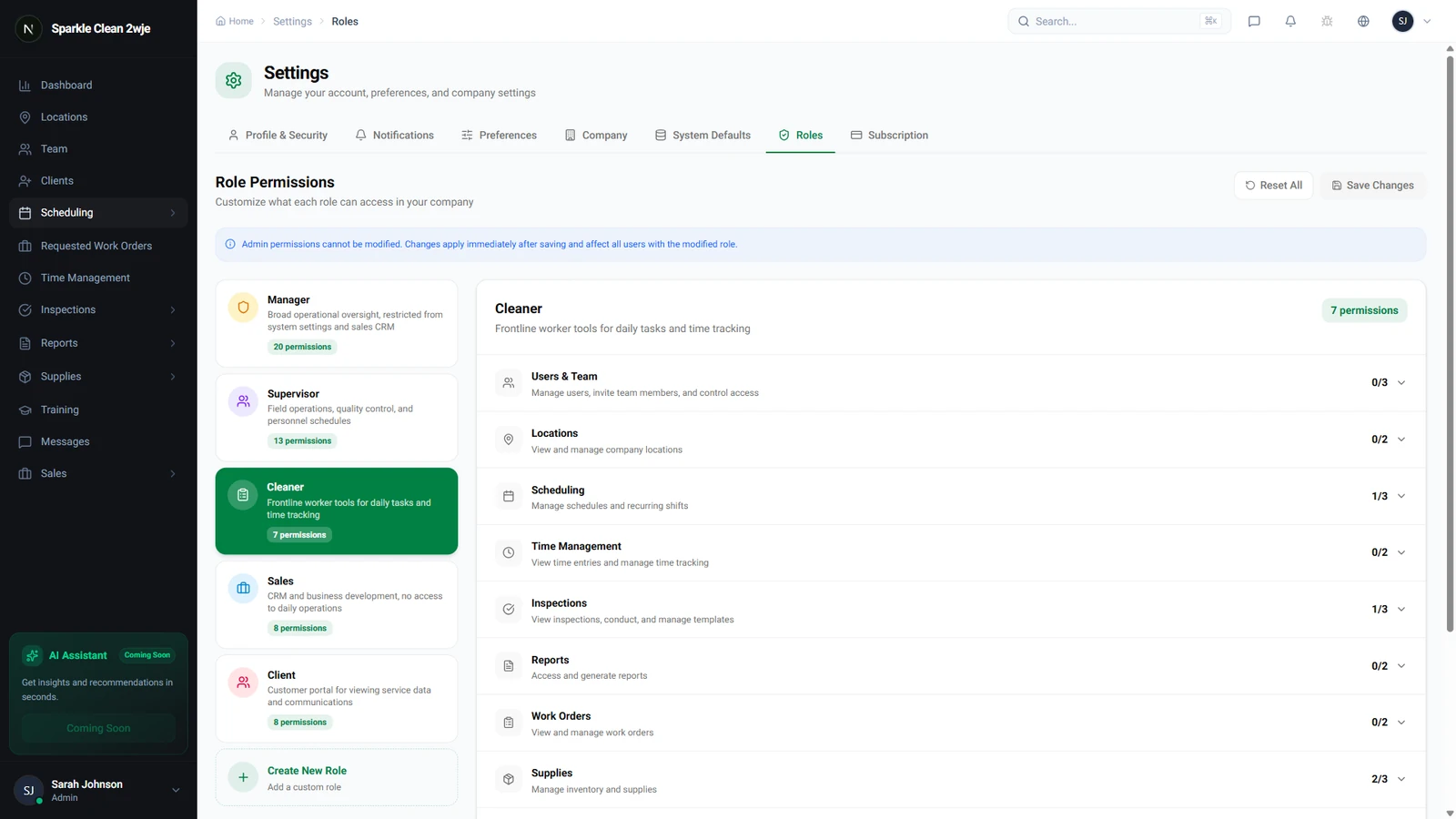
Clicking on Cleaner shows their permissions. Cleaners are restricted to mobile-only features like viewing schedules, clocking in/out via GPS geofence, and completing checklists.
💡
Pro tip: Limit access for field workers by keeping the Cleaner role restricted to essential mobile-only permissions.
🙌
Need help? If you have any questions or run into issues, reach out through the Support section in your dashboard.